
THE DASHBOARD PACK
Dropdowns, slicers, search bars and live filters — finished files built the same way as the map in this video. Free, instant, yours to keep.
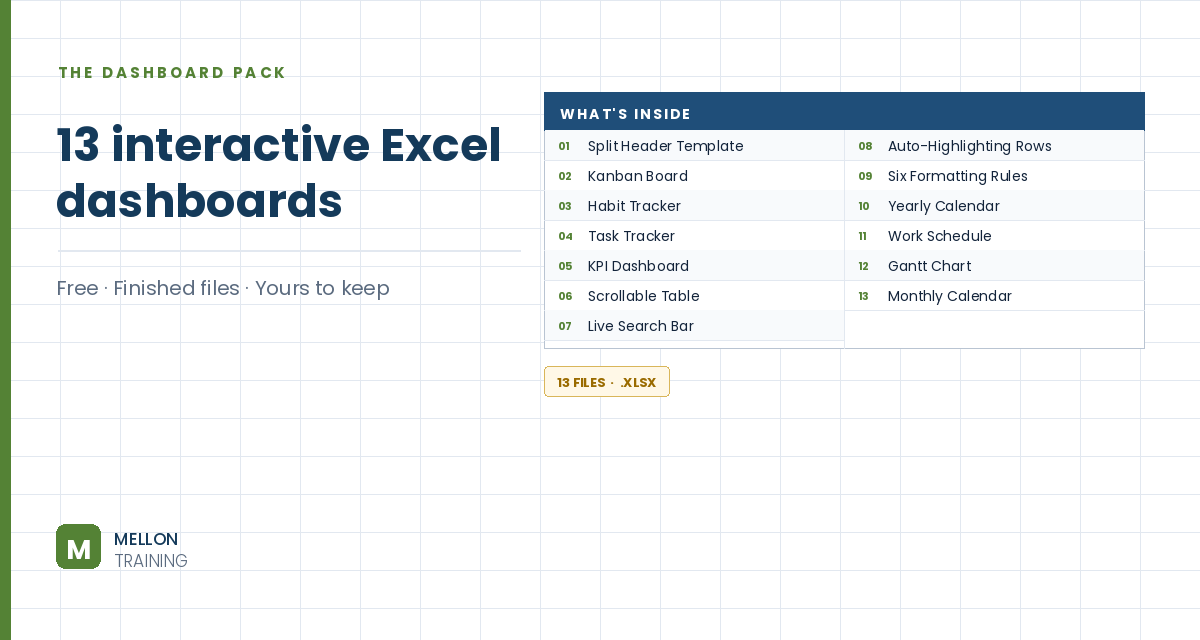
What’s in the pack
Free, instant, and yours to keep.
No spam, ever. Unsubscribe with one click.
One practical Excel tip a week.
Watch the 11-minute video or follow the written steps below. The finished dashboards are in the free pack above.
Click a state on a map and its row in the table lights up. The example uses a waste-management report for Australian states, a map picture with a small square shape over each state, and recorded macros: no code-writing needed to start.
In K1, go to Data > Data Validation, choose List and select the state names (B5:B12).
Select the table (B5:I12) and add Conditional Formatting > New Rule > Use a formula:
=$B5=$K$1
The dollar before B keeps every cell in the row checking column B. Choose a light blue fill and white font. Change K1 and the highlight moves.
Save the file as an Excel Macro-Enabled Workbook (*.xlsm), and turn on the Developer tab (File > Options > Customize Ribbon).
Click any cell other than K1, then Developer > Record Macro. Name it after the state (for example ACT), optionally give it a shortcut such as Ctrl+Shift+A, and click OK. Click K1, type ACT, press Enter, click L1, then Stop Recording. Record a second one for NSW to compare.
Go to Developer > Macros > Edit. Each recorded macro is a few lines between Sub and End Sub: select K1, set its value, select L1. Copy one, paste it below, and change the macro name and the state value (for example WA). Repeat for each state. Alt+F11 switches between the editor and the sheet.
Right-click the square over each state, choose Assign Macro and pick that state’s macro. Now hovering shows a hand cursor, and clicking a state highlights its row: a simple interactive map for a dashboard.
YOUR NEXT STEP
The macro recorder gets you a long way — right up until you need it to do something slightly different. Then you have to open what Excel wrote and change it. The interactive files in this pack are built from the same three ingredients: data validation, conditional formatting, dynamic formulas. Learn those and the macro becomes optional.
30-day money-back guarantee, handled by Udemy. No forms, no questions.
★★★★★ Join 80,000+ students
Andreas Exadaktylos · Microsoft-certified Excel instructor · mellontraining.com
WATCHING ON YOUTUBE?
11 step-by-step courses on Excel, Power BI, Python and AI, all on Udemy with lifetime access.