
THE DASHBOARD PACK
The finished board from the video — tasks move between columns by themselves. Plus ten more Excel files. Free, instant, yours to keep.
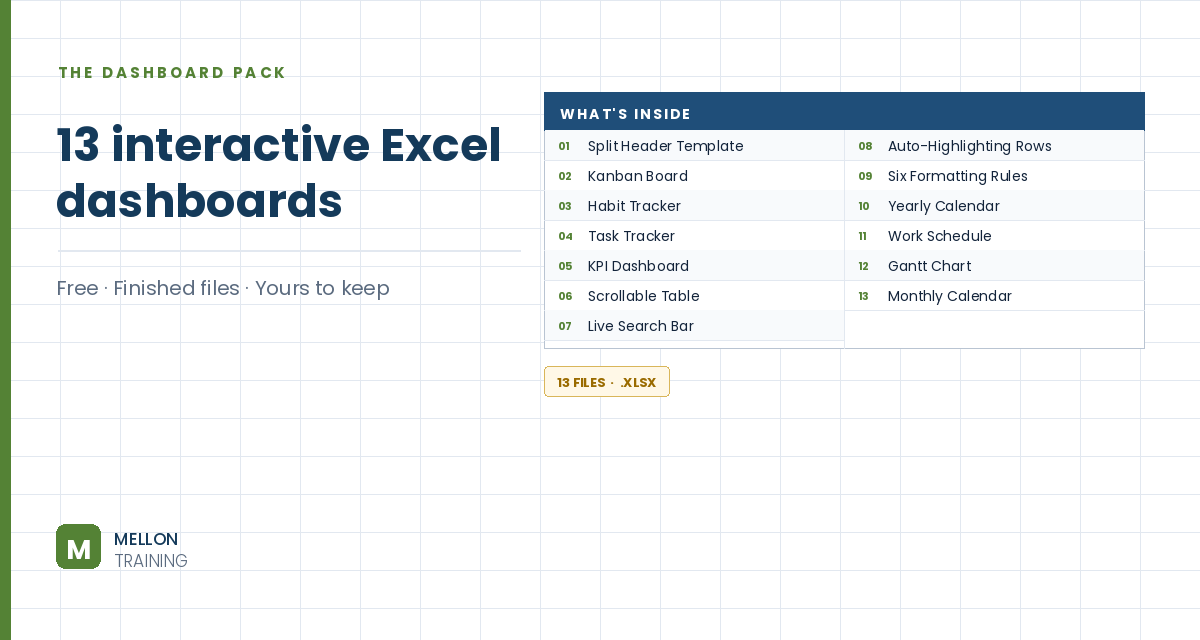
What’s in the pack
Free, instant, and yours to keep.
No spam, ever. Unsubscribe with one click.
One practical Excel tip a week.
Watch the 22-minute build or follow the main stages below. The finished board is in the free pack above.
You’ll make two sheets: a Task List where you type tasks and pick a status, and a Kanban Board that moves each task into the right column by itself. No macros, just drop-downs, named ranges and a few formulas.
Select all cells and set the rows to 30 high and the columns to 2.5 wide, with text aligned middle and left. Make row 1 a title bar (40 high, bold 16 pt white text on dark blue), turn off gridlines, and widen columns A:B to 7. Then copy the sheet (Move or Copy > Create a copy) and rename the two sheets Task List and Kanban Board.
Widen columns B:E and G:H to 25. Add headers in B3:E3 (Task, Assigned To, Stage, Lookup) and in G3:H3 (Stage, Base Value), with borders and a light blue header fill. Type your tasks in B4:B12 and the people in C4:C12.
In G4:G7, list your statuses (Backlog, To Do, In Progress, Complete), and in H4:H7 give each a base number: 100, 200, 300 and 400. Each column gets its own range of ID numbers. Use 1,000s if you’ll have more than 99 tasks in one status.
Select D4:D12, go to Data > Data Validation > List, and choose G4:G7 as the source.
Select each range and type a name in the Name Box: TaskList (B4:B12), OwnerList (C4:C12), StageList (D4:D12), LookupList (E4:E12) and StatusTable (G4:H7). This makes the formulas read like English.
In E4, enter this and copy it down to E12:
=VLOOKUP(D4,StatusTable,2,FALSE)+COUNTIF($D$4:D4,D4)
VLOOKUP gets the base number for the task’s status, and COUNTIF counts how many tasks with that status appear up to this row. So the first Backlog task is 101, the second 102, and so on. Each task gets a unique code that says which column it belongs in and in what order. To add more tasks later, insert rows in the middle of the table so the named ranges stretch. Hide columns E:H when you’re done.
On the Kanban Board sheet, widen columns D, H, L and P to 25 and centre them. Pull the status names in automatically: =INDEX(StatusTable,1,1) in D3, then the same with 2, 3 and 4 in H3, L3 and P3. Add light blue backgrounds for each column and a coloured bar under each header.
Style D6 (bold, for the task) and D7 (grey, for the person) as a white card with an outline. In column B, add a hidden counter: 1 in B6 and B7, and =B6+1 three rows down. Then in D6:
=IFERROR(INDEX(TaskList,MATCH($B6+VLOOKUP(D$3,StatusTable,2,FALSE),LookupList,0)),"")
In D7, use the same formula with OwnerList instead of TaskList. The formula builds the code for “card 1 in this column” (base number plus counter), finds it in the lookup list and returns the matching task or person, or a blank if there isn’t one. In Excel 365, XLOOKUP can do the same job in a shorter formula.
Copy D6:D7 into H6, L6 and P6. Add a conditional formatting rule (Cell Value equal to ="") that removes the border and uses the background colour, so empty cards disappear. Then copy the card rows down for as many cards as you need, hide column B, and slim the spacer rows to 10.
Change a task’s status on the Task List and it jumps to the right column on the board. From here you can add a due-date column with conditional formatting for overdue tasks, a filter by person, or Freeze Panes for the headers.
YOUR NEXT STEP
This board runs on INDEX/MATCH, data validation and conditional formatting. So does the habit tracker sitting next to it in the pack, and the KPI report, and almost every professional Excel dashboard you’ve admired. Three techniques, endlessly recombined. Learn them properly and you stop collecting templates.
30-day money-back guarantee, handled by Udemy. No forms, no questions.
★★★★★ Join 80,000+ students
Andreas Exadaktylos · Microsoft-certified Excel instructor · mellontraining.com
WATCHING ON YOUTUBE?
11 step-by-step courses on Excel, Power BI, Python and AI, all on Udemy with lifetime access.