
THE TIPS PACK
A long table to practise locking headers on — plus fifteen more Excel files. Free, instant, yours to keep.
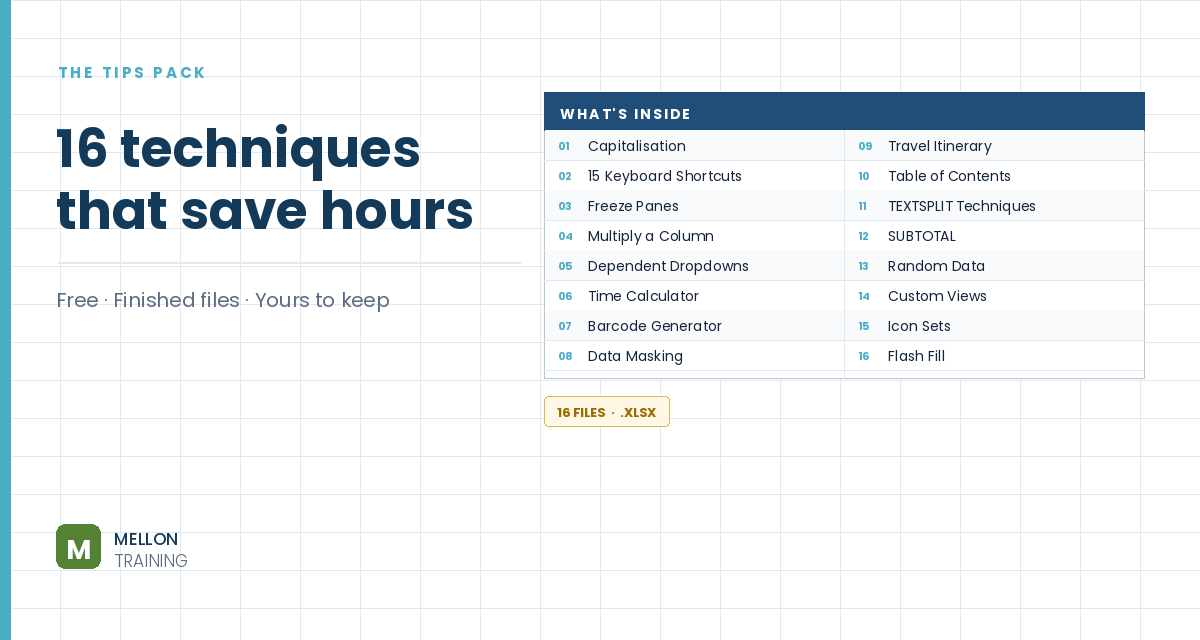
What’s in the pack
Free, instant, and yours to keep.
No spam, ever. Unsubscribe with one click.
One practical Excel tip a week.
Watch the 5-minute video or follow the written steps below. The practice file is in the free pack above.
Freeze Panes keeps header rows or ID columns on screen while you scroll a long table. It always takes two steps: select the right cell, then freeze. The rule to remember: Excel freezes everything above and to the left of the cell you select.
To freeze the top two rows, select the first cell of row 3 (A3), or the whole of row 3. Then go to View > Freeze Panes > Freeze Panes. Scroll down and rows 1 and 2 stay put. To freeze the top 10 rows, you’d select A11.
Go to View > Freeze Panes > Unfreeze Panes.
If you only have one header row, there’s a shortcut that needs no selection: View > Freeze Panes > Freeze Top Row.
To keep columns A, B and C visible as you scroll right, select any cell in column D in row 1 (or the whole of column D), then Freeze Panes. A darker line shows where the frozen area ends.
Select the cell just below the rows and just right of the columns you want to keep. To freeze rows 1–2 and columns A–C, select D3 and choose Freeze Panes. Everything above and left of D3 stays visible in both directions.
You can only freeze rows at the top and columns on the left. Rows or columns in the middle of the sheet can’t be frozen; use View > Split if you need two independent views.
YOUR NEXT STEP
Freeze Panes confuses people because nobody states the rule — they just show the menu. One sentence and you never look it up again. That’s the whole category: small things with a simple explanation that somehow never gets given. The course is about a hundred of them.
30-day money-back guarantee, handled by Udemy. No forms, no questions.
★★★★★ Join 80,000+ students
Andreas Exadaktylos · Microsoft-certified Excel instructor · mellontraining.com
WATCHING ON YOUTUBE?
11 step-by-step courses on Excel, Power BI, Python and AI, all on Udemy with lifetime access.