
NEWExcel AI Agents: use Copilot and Claude in Excel, and prove every number is right. Excel AI Agents course. See the course →

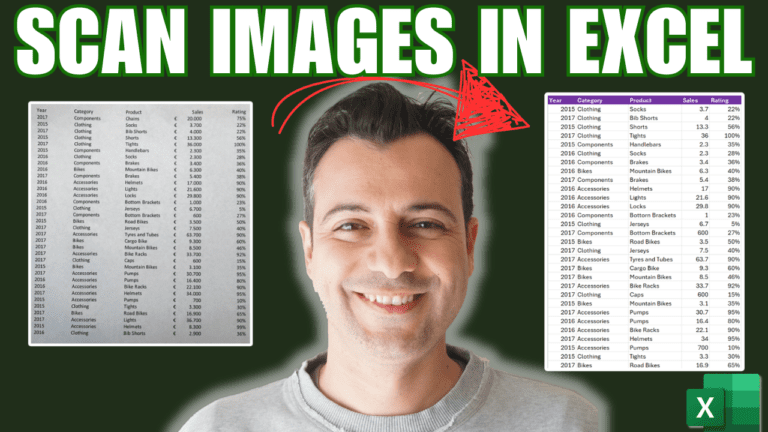
How to Convert a Picture of a Table into Excel Data

Grab Your Free Workbook Now! 📥


Follow step-by-step and boost your learning.

It’s practical, easy, and totally free. Get started today!


🔔 SUBSCRIBE if you’d like more tips and tutorials like this


We respect your privacy. Unsubscribe at any time.

Watch: picture to spreadsheet in 5 minutes

Prefer reading? The same steps are written out below the video.

Step-by-step

Got a table only as a printout or a screenshot? Instead of retyping it, Excel’s Data from Picture feature uses OCR (optical character recognition) to read the image and turn it into editable cells.

1. Import the picture

Open a new workbook and go to Data > From Picture > Picture From File, then browse to your image. Depending on its size, Excel may take a moment to process it.

2. Review what Excel read

When it’s done, click Review. Excel flags cells it isn’t sure about. Click a flagged cell, correct the text if needed (in the video, “Components” was read with a stray space and a capital S) and click Accept.

Excel does a good job, but it isn’t infallible. Some errors are subtle and some may not be flagged at all, so check the important values yourself.

3. Insert the data

Click Insert Data. If you haven’t reviewed every flagged cell, Excel warns you; you can insert anyway and fix things in the sheet.

4. Tidy up

OCR won’t always put everything in exactly the right cells, so make any manual adjustments. It’s still far faster than typing it all in.

5. Run a spell check

As a final safety net, go to Review > Spelling to catch anything the review step missed.

Go further

My Excel Tips & Shortcuts: 100+ Powerful Hacks course collects a hundred time-saving techniques like this one.

Delete Thousands of Numbers Instantly in Excel! #excel #shorts

Andreas Exadaktylos May 23, 2026 18:09

Your Excel Charts Are Wrong | Here's Why & How to Fix It

Andreas Exadaktylos May 9, 2026 16:21

Master the Excel FILTER Function in 30 Seconds 📊 #Excel

Andreas Exadaktylos April 27, 2026 16:53

Build a Budget in Excel in 10 Minutes — and See If You're Actually Broke

Andreas Exadaktylos April 19, 2026 16:13

The Excel Button You’ve NEVER Used 🤫 #exceltips

Andreas Exadaktylos April 17, 2026 14:00

STOP scrolling manually in Excel! 🛑

Andreas Exadaktylos April 3, 2026 17:04

WATCHING ON YOUTUBE?

The full courses go further

11 step-by-step courses on Excel, Power BI, Python and AI, all on Udemy with lifetime access.