
THE BUDGET PACK
The finished budget, a monthly version with charts, and a compound interest calculator. Free, instant, yours to keep.
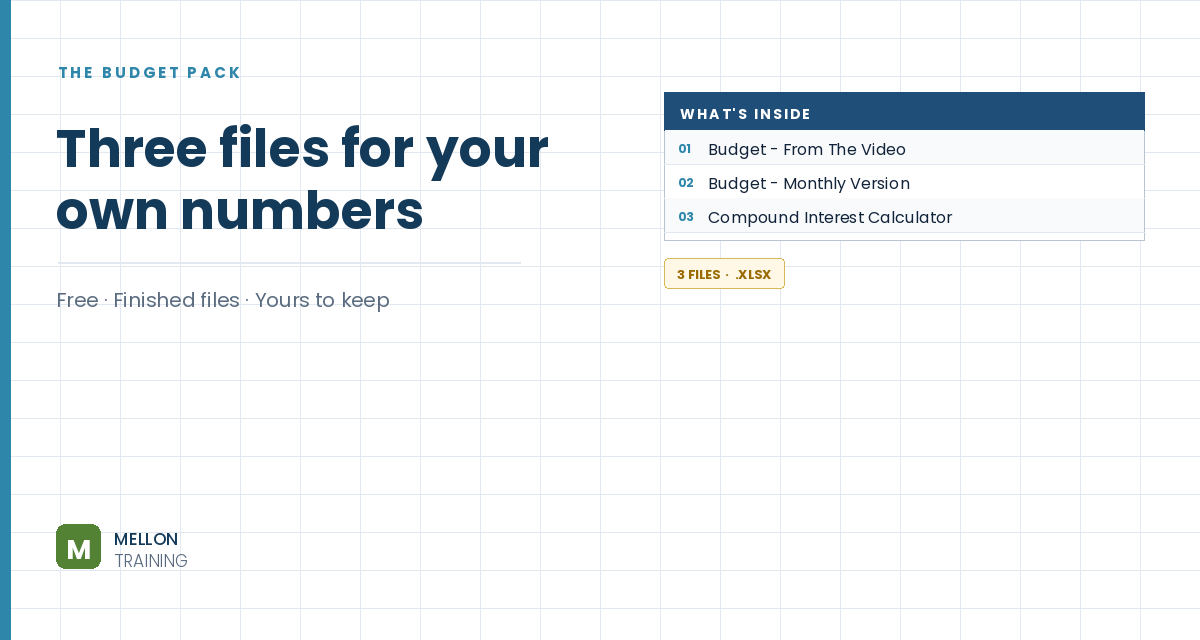
What’s in the pack
Free, instant, and yours to keep.
No spam, ever. Unsubscribe with one click.
One practical Excel tip a week.
Watch the 20-minute video or follow the written steps below. The finished budget is in the free pack above.
A personal budget works like a company’s books: income is your revenue, spending is your costs, and what’s left is your savings (a business would call it profit). You’ll build a simple yearly budget and learn the basics of formulas and formatting on the way.
Type Budget in A1, Income in A3 and Salary in A4. Type the salary in B4 as plain digits, for example 50000, with no dollar sign or commas. Then click the $ button on the Home tab and use Decrease Decimal to drop the cents.
In A5 type Taxes. In B5, work out 22% of the salary by clicking the salary cell rather than typing the number:
=22%*B4
Referencing B4 means the tax updates whenever the salary changes. To show the formula next to it, use =FORMULATEXT(B5) in C5.
Below, add Medical, Dental and Retirement with your amounts (5,000, 500 and 5,000 in the example). Select B6:B8 and format them as currency in one go. Make Income bold and indent the items under it with Increase Indent.
In A9 type Net income and in B9:
=B4-B5-B6-B7-B8
In the example, a $50,000 salary leaves $28,500 a year.
Type Expenses in A11 and list your costs below: rent, food, car, travel, household, pet, gifts, savings and loan repayments. Keep the units consistent: everything is yearly, so monthly rent goes in as =1500*12. Format the amounts as currency and indent the labels.
Below the list type Total expenses and add them all up:
=SUM(B12:B20)
Change the range to match your own list.
Under that, type Net savings and subtract total expenses from net income, for example =B9-B21. Format it as Accounting: negative numbers then show in brackets, the way financial reports do, so a shortfall is hard to miss.
Select A1:B1, click Merge & Center and apply a Cell Style such as Heading 1. Now try changing numbers, such as less towards retirement, cheaper rent or less travel. Every total updates instantly, so you can see what it takes to break even.
YOUR NEXT STEP
Income, costs, what’s left — at a different scale, with more rows. The habit you just used, keeping assumptions in their own cells so one edit updates everything, is the same habit behind every three-statement model and DCF valuation ever built. That’s what the course teaches, from a blank file.
30-day money-back guarantee, handled by Udemy. No forms, no questions.
★★★★★ Join 80,000+ students
Andreas Exadaktylos · Microsoft-certified Excel instructor · mellontraining.com
WATCHING ON YOUTUBE?
11 step-by-step courses on Excel, Power BI, Python and AI, all on Udemy with lifetime access.