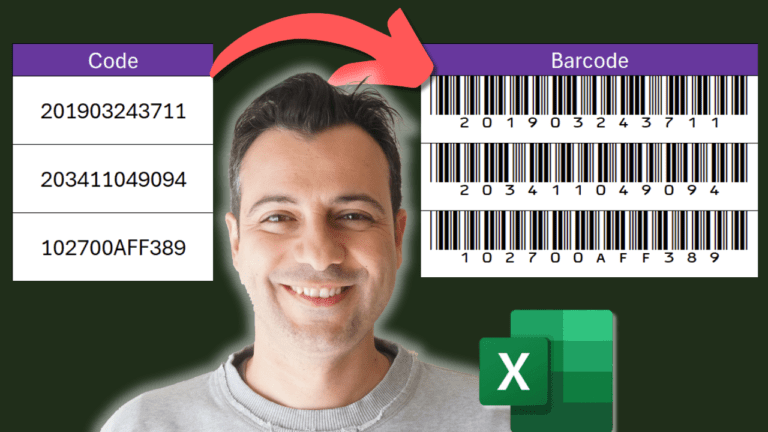
How to Create Barcodes in Excel (Free Code 39 Font)
Grab Your Free Workbook Now! 📥
Follow step-by-step and boost your learning.
It’s practical, easy, and totally free. Get started today!
🔔 SUBSCRIBE if you’d like more tips and tutorials like this
https://bit.ly/3HHWQME
We respect your privacy. Unsubscribe at any time.
Watch: barcodes in Excel in 5 minutes
Prefer reading? The same steps are written out below the video.
Step-by-step
You can turn product or inventory codes into barcodes that any barcode scanner can read, with one formula and a free font. No special software needed.
1. Format the codes as text
If your codes start with a zero, Excel tries to help by removing it, which breaks the barcode. Select the column that holds the codes (column B in the example) and format it as Text before you type them, so every digit is kept exactly as entered.
2. Add the barcode formula
Click the cell where the first barcode should appear (C3) and enter:
="("&B3&")"
This wraps the code in brackets, which this barcode font uses as its start and stop characters. It won’t look like a barcode yet.
3. Copy it down
Drag the fill handle at the bottom-right of C3 down to the end of your list.
4. Apply the barcode font
Select the whole column with the formulas and change the font to IDAutomationHC39M. The text instantly turns into scannable barcodes.
The barcodes are dynamic: change a code in column B and its barcode in column C updates automatically.
Don’t have the font? Install it (free)
Download the free Code 39 font from IDAutomation’s website (the link is in the video description).
Extract the zip file.
Double-click the font file and click Install.
Restart Excel. The font now appears in your font list.
Go further
My Excel Tips & Shortcuts: 100+ Powerful Hacks course collects a hundred small techniques like this one that add up to hours saved every week.