
THE DASHBOARD PACK
All three methods from the video, already built — plus ten more Excel dashboards and templates. Free, instant, yours to keep.
What’s in the pack
Free, instant, and yours to keep.
No spam, ever. Unsubscribe with one click.
One practical Excel tip a week.
Watch the 5-minute video or follow the written steps below. The template above has all three methods already built.
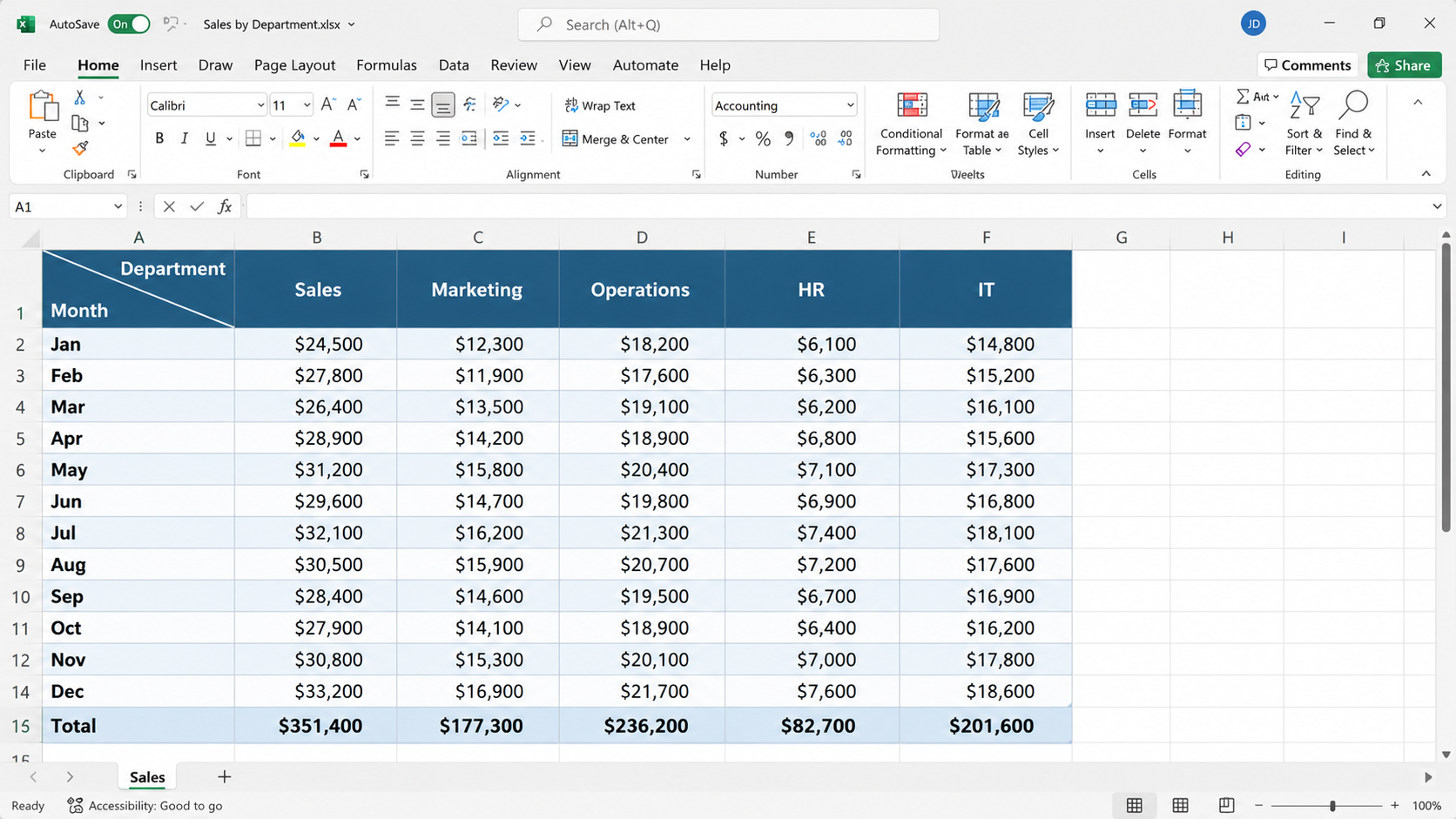
The example is a quarterly revenue table: Q1 to Q4 down the side, and Chicago, Berlin, Tokyo and Sydney across the top. The top-left corner cell needs to say that the rows are quarters and the columns are cities. Excel can’t split a cell in two, so instead you make it look split.
This is a manual tweak, but it stays exactly in place for anyone who opens the file, which makes it the best choice for files you share.
Remove the diagonal border and the extra spaces. Go to Insert > Shapes, choose a straight line and draw it across the cell. Change its colour to match the table borders and make it a little thinner. Adjust the column width and row height as needed, and hold Shift while resizing to keep the line straight. Then use spaces to place one word above the line and one below.
The catch: a shape floats on top of the sheet, so it can shift slightly on other screens or computers. It’s fine for quick work but not ideal for sharing.
Delete the line and keep just the wrapped text, with spaces positioning the two words. It’s clean and simple, but it only works if your layout won’t change much later.
None of these methods actually splits the cell. Excel doesn’t allow that. They’re all visual tricks, which is why the diagonal border, which stays put no matter who opens the file, is usually the best option.
YOUR NEXT STEP
A split header is a formatting trick. But the files sitting next to it in this pack — the Kanban board, the habit tracker, the KPI report — all rest on the same three techniques: conditional formatting, data validation and dynamic formulas. Learn those properly and you stop hunting for templates. You build whatever you need.
30-day money-back guarantee, handled by Udemy. No forms, no questions.
★★★★★ Join 80,000+ students
Andreas Exadaktylos · Microsoft-certified Excel instructor · mellontraining.com
WATCHING ON YOUTUBE?
11 step-by-step courses on Excel, Power BI, Python and AI, all on Udemy with lifetime access.