
THE MACRO PACK
The finished generator from the video — one click builds a new puzzle. Plus 28 macros you import once and use everywhere. Free, yours to keep.
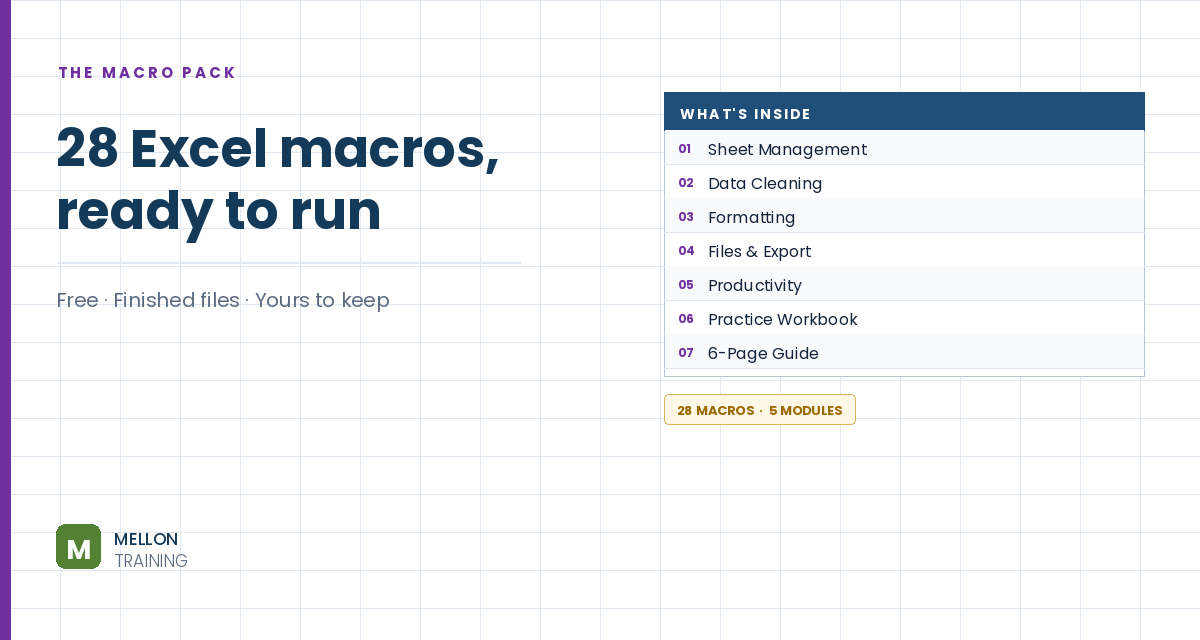
What’s in the pack
Free, instant, and yours to keep.
No spam, ever. Unsubscribe with one click.
One practical Excel tip a week.
Watch the 26-minute video or follow the written steps below. The finished generator, with the full VBA code, is in the free pack above.
You’ll build a 9×9 Sudoku grid that checks your answers as you type, plus a button that generates a brand-new puzzle. No VBA experience needed: the code is explained routine by routine, and the complete code is in the free download.
Go to File > Options > Customize Ribbon, tick Developer and click OK.
Go to File > Save As and choose Excel Macro-Enabled Workbook (*.xlsm). Without this, Excel can’t keep the code.
Rename Sheet1 to Puzzle. Select columns A:I and set the column width to 4. Select rows 1:9 and set the row height to 30, so the cells are square. Select A1:I9, centre the text horizontally and vertically, set the font to 16 and apply All Borders.
Select the first block (A1:C3), open Borders > More Borders, choose a thick line and click Outline. Repeat for the other eight blocks.
Right-click the Puzzle tab, choose Move or Copy, tick Create a copy, move it to the end and rename the copy Solution. To test, type a sample puzzle into Puzzle (leave blanks empty) and its full solution into Solution.
On Puzzle, select A1:I9 and go to Conditional Formatting > New Rule > Use a formula. For correct answers, use a light green fill:
=AND(A1<>"",A1=Solution!A1)
Add a second rule with a light red fill for wrong answers:
=AND(A1<>"",A1<>Solution!A1)
Type a number into a blank cell to test: it turns green if it matches the solution and red if not.
Press Alt+F11, right-click your workbook in the left panel and choose Insert > Module. Paste the code from the download. It’s made of a few short routines:
Press Alt+Q to go back to Excel. On Puzzle, go to Developer > Insert > Button (Form Control) and draw a button. Assign the NewRandomPuzzle macro and rename the button New Puzzle.
Click New Puzzle: Excel clears the grid and lays down a fresh puzzle, with the answer hidden on the Solution sheet. Turn off gridlines on both sheets and save.
YOUR NEXT STEP
A Sudoku generator is a fun build, but the parts are serious — arrays, loops, recursion and randomisation are the foundations of real Excel automation. If you could follow along with the code in that video, you’re past the point where VBA feels like a foreign language. That’s where the course picks up.
30-day money-back guarantee, handled by Udemy. No forms, no questions.
★★★★★ Join 80,000+ students
Andreas Exadaktylos · Microsoft-certified Excel instructor · mellontraining.com
WATCHING ON YOUTUBE?
11 step-by-step courses on Excel, Power BI, Python and AI, all on Udemy with lifetime access.