
THE POWER QUERY PACK
Monthly files to combine, exports to clean, layouts to reshape — not tidy demo tables. Fourteen files, free, instant, yours to keep.
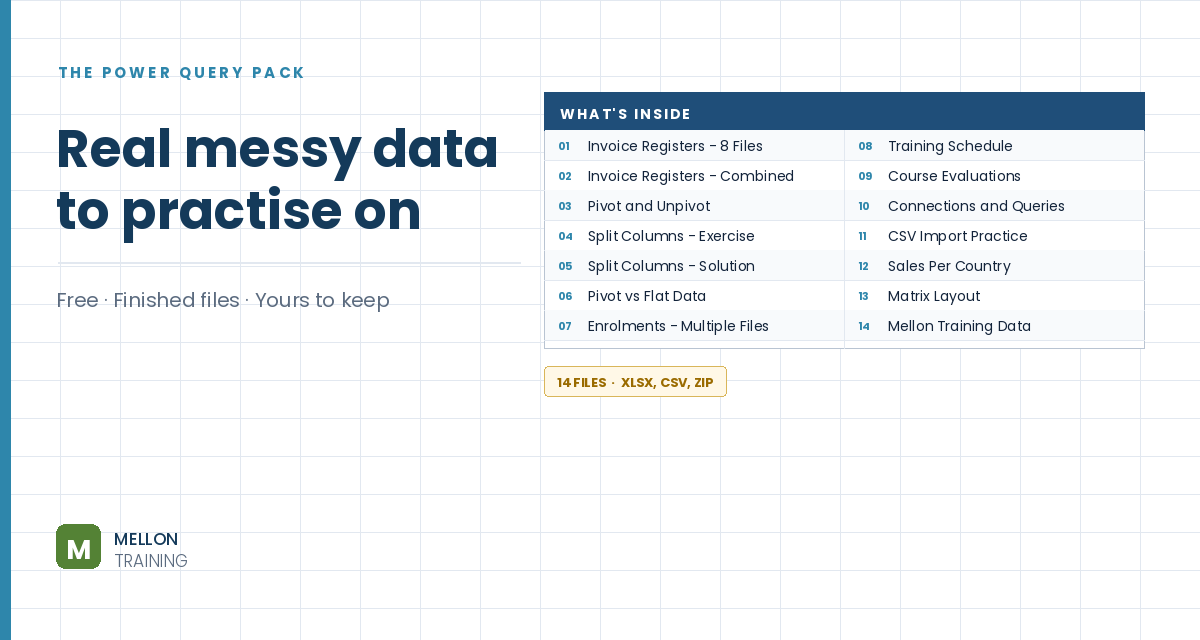
What’s in the pack
Free, instant, and yours to keep.
No spam, ever. Unsubscribe with one click.
One practical Excel tip a week.
Watch the 5-minute video or follow the written steps below. The practice files are in the free pack above.
Two ways to calculate someone’s age from their date of birth: one formula for a quick answer, and Power Query for a list you refresh regularly. The example has dates of birth in column C.
In D3:
=YEARFRAC(C3,NOW())
YEARFRAC returns the number of years between two dates, including the fraction of the current year, and it handles leap years for you. Its optional third argument, basis, sets the day-count method; leave it out for normal use.
The result is a decimal, such as 34.62, meaning 62% of the way to the next birthday. Use Decrease Decimal to hide the decimals, or wrap the formula in INT to get completed years: =INT(YEARFRAC(C3,NOW())).
Click inside the data and go to Data > From Table/Range. If it isn’t a table yet, confirm My table has headers and click OK. The Power Query editor opens.
Click the date of birth column header, then Add Column > Date > Age. The new column shows a duration in days, not years.
Select the Age column and go to Transform > Duration > Total Years. To drop the decimals, use Transform > Rounding > Round Down.
Click File > Close & Load. The ages appear in a new sheet. Next time the list changes, right-click the result and choose Refresh, with no formulas to copy. Skip the rounding step if you need the decimal part.
YOUR NEXT STEP
YEARFRAC is fine for a list you calculate once. But if next month brings a new file with the same columns, you’re copying formulas down again. Power Query records what you did as steps, so the next file needs nothing but Refresh. That’s the whole argument, and it applies to far more than ages.
30-day money-back guarantee, handled by Udemy. No forms, no questions.
★★★★★ Join 80,000+ students
Andreas Exadaktylos · Microsoft-certified Excel instructor · mellontraining.com
WATCHING ON YOUTUBE?
11 step-by-step courses on Excel, Power BI, Python and AI, all on Udemy with lifetime access.