
THE TIPS PACK
Get the practice file, plus 14 more
The messy name list from the video with all three functions set up — plus fourteen more Excel workbooks. Free, instant, yours to keep.
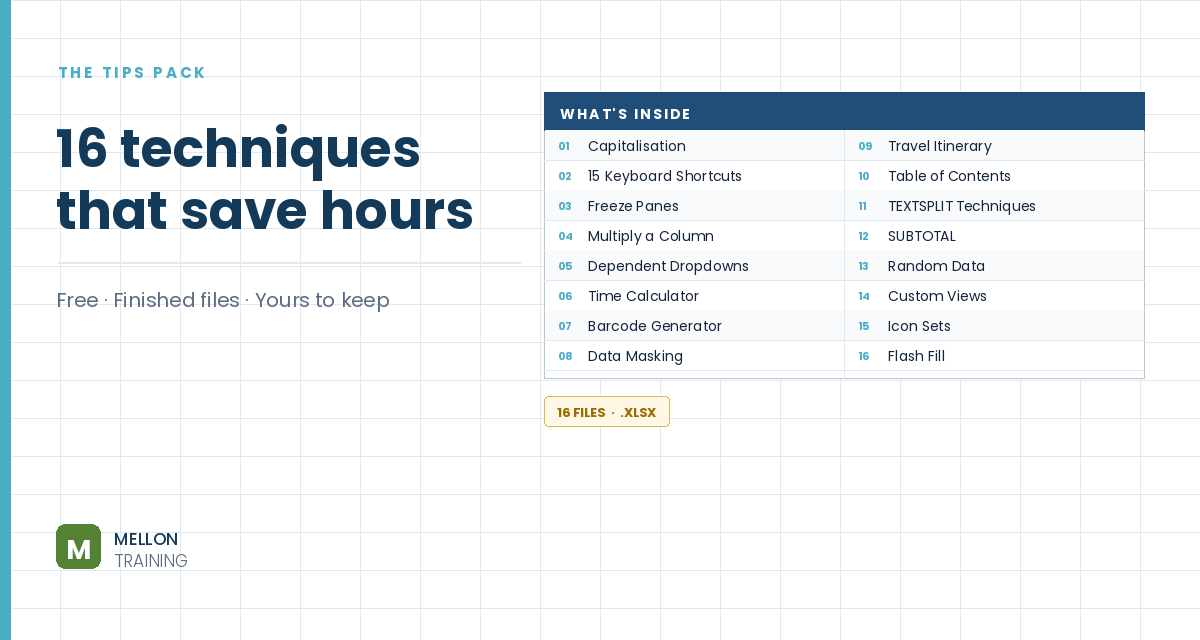
What’s in the pack
- The messy name list from this video, ready to fix
- UPPER, LOWER and PROPER already set up side by side
- Fourteen more workbooks: shortcuts, dropdowns, barcodes, timesheets
- Every formula written out, nothing hidden
- Works in Excel 365, 2021 and 2019 — PC and Mac
Send it to my inbox
Free, instant, and yours to keep.
No spam, ever. Unsubscribe with one click.
One practical Excel tip a week.
How to Change Text to Uppercase, Lowercase or Proper Case in Excel
Watch the 5-minute video or follow the written steps below. The practice file above has the same messy name list, so you can follow along.
Step-by-step
The example is a player list in column B with names typed in different styles: some in capitals, some in lowercase, some mixed. You’ll fix them in a helper column, then turn the formulas into plain text so the sheet doesn’t break later.
1. UPPER: make every letter a capital
In G3, type =UPPER(B3) and press Enter. To apply it to the whole list, drag the small square at the bottom-right of G3 down, or double-click it and Excel fills the formula down automatically (as long as the column next to it has data).
2. Lock the results in place
Column G is still full of formulas, so the names would change if you edited the originals. To keep them, select the results, copy them, then right-click the same spot and choose Paste Special > Values.
- Windows: Ctrl+C, then Ctrl+Alt+V, V, Enter
- Mac: Cmd+C, then Ctrl+Cmd+V, V, Enter
If you want the original column to show the fixed names, paste the values back into column B and delete the helper column.
3. LOWER: make every letter lowercase
Same idea: in G3 type =LOWER(B3), fill it down, then copy and paste as values to keep the result.
4. PROPER: capitalise the first letter of each word
To get names like John Doe, type =PROPER(B3) in G3, fill it down, and paste as values.
Two shortcuts that feel like magic
- Fill handle: after entering the first formula, double-click the small square in the corner of the cell to fill the whole column instantly.
- Flash Fill: type the first name the way you want it in the next column, then press Ctrl+E (Cmd+E on a Mac). Excel follows your example and fills the rest. It works best when the pattern is easy to guess.
Summary
UPPER for all capitals, LOWER for all lowercase, PROPER for a capital first letter. And always paste as values when you’re done, so your sheet stays stable.
YOUR NEXT STEP
Three functions down. Another hundred to go.
UPPER, LOWER and PROPER take two minutes to learn and save you an afternoon the first time a messy export lands on your desk. There are around a hundred more like them — small things nobody teaches you, that quietly decide whether Excel is a chore or a tool.
- 100+ techniques, taught at beginner pace
- Shortcuts, formatting, formulas, data cleaning, printing
- Every exercise file included
- 8 hours · lifetime access · all future updates
30-day money-back guarantee, handled by Udemy. No forms, no questions.
★★★★★ Join 80,000+ students
Andreas Exadaktylos · Microsoft-certified Excel instructor · mellontraining.com
No matter your profession, stop wasting precious hours crunching numbers.
Get the Excel training that builds an unbeatable resume and warp drives your career.