
Confession time: I used to stare at Excel formulas like they were ancient runes. Then I realized… I don’t have to write them. ChatGPT can.
In this guide, I’ll show you how to use ChatGPT to write Excel formulas quickly and correctly — even if you’re brand new to functions. You’ll learn how to describe your goal in everyday language, paste the formula into Excel, and let AI do the heavy lifting.
I’m Andreas — full-time Excel teacher for over 20 years and best-selling Udemy instructor.
I teach Excel in simple words, real examples, and just enough dad-jokes to prevent VLOOKUP-induced panic.
🧰 What You Need Before Using ChatGPT for Excel
To follow along, open:
-
Your Excel workbook
-
ChatGPT (free version works perfectly)
-
Put the windows side-by-side
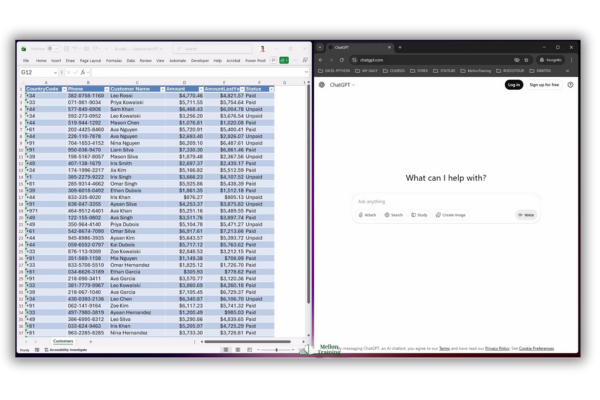
Think of ChatGPT as a super-patient coworker who will happily explain the same thing seven times. Your job is simply to describe what you want.
💬 What Is a Prompt? (And Why It Matters in Excel + ChatGPT)
A prompt is just you explaining:
-
Where your data is
-
What result you want
Example of a great Excel prompt for ChatGPT:
“In a table named Customers, join the CountryCode and Phone columns with a hyphen.”
No technical jargon required. No need to sound like a programmer. Just clarity.
📌 Project 1: Join Two Columns Using ChatGPT (TEXTJOIN, CONCAT & More)
This is one of the most common Excel tasks — creating a reference code.
I asked ChatGPT:
“I need an Excel formula that joins CountryCode and Phone from a table named Customers, separated by a hyphen.”
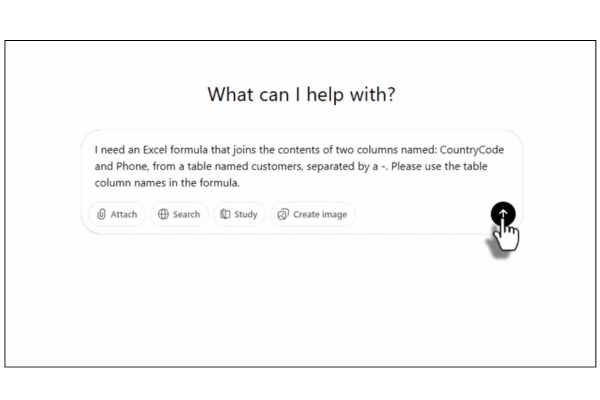
ChatGPT returned:
-
A simple ampersand version
-
A
CONCATversion
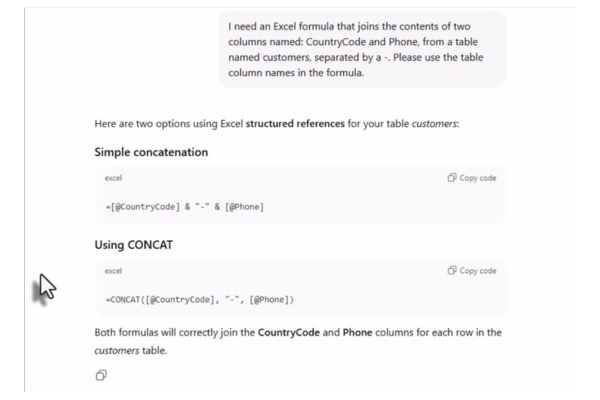
Copy the formula → create a Reference column → paste. Done.
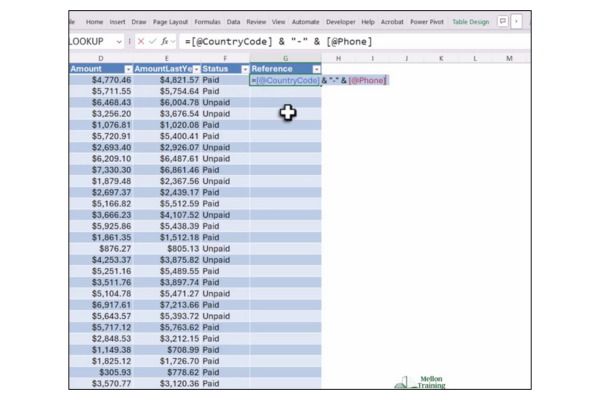
If Excel formats it weirdly, switch to General format.
📌 Project 2: Calculate Percentage Change with ChatGPT
Percentage change formulas can feel confusing, but ChatGPT makes them effortless.
Prompt:
“In the same table, give me a formula that returns the percentage change between Amount and Amount Last Year.”
ChatGPT gave the correct formula and reminded me to format the result myself.
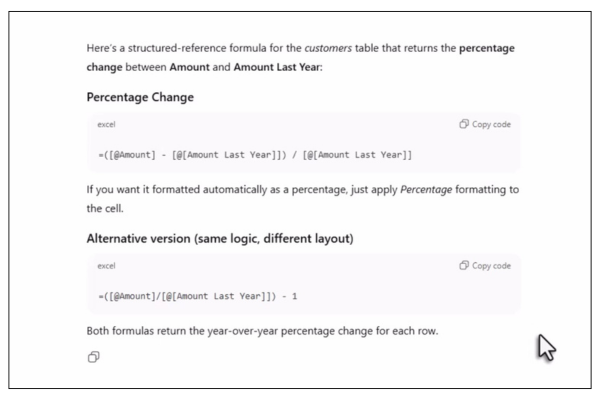
Paste → Press Percent Style → enjoy your clean results.
📌 Project 3: Sum Only Unpaid Customers (ChatGPT + SUMIFS)
Need to sum based on conditions? SUMIFS is your best friend — and ChatGPT knows that.
I pasted the table and asked:
“I need an Excel formula that sums the Amount column in tblCustomers only where Status is ‘unpaid.’”
ChatGPT returned the perfect SUMIFS formula.
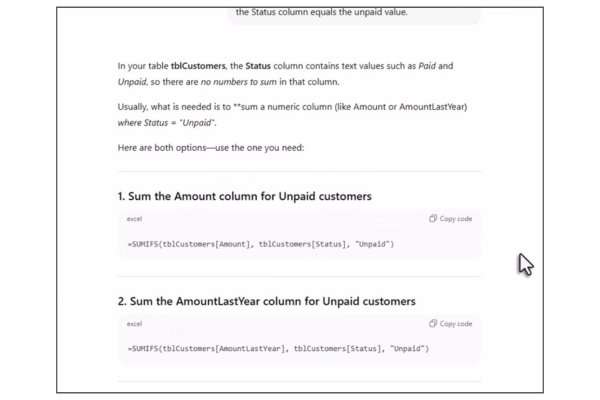
Paste it into a cell → instant total of unpaid customers.
🗣️ How to Write Effective Prompts for Excel Formulas in ChatGPT
If you want ChatGPT to nail the answer every time, use this simple recipe.
✔ Tell it where your data is
Include table names, sheet names, and column names.
✔ Tell it what result you want
Join → Sum → Compare → Calculate → Filter → Format.
✔ Mention formatting needs
“Return a percentage I can format.”
“Output should be text.”
✔ Ask for beginner-friendly versions
“Use the simplest Excel formula possible.”
✔ When things break, describe the error
-
“Divide-by-zero error — please return blank.”
-
“Rewrite using table syntax so it autofills.”
ChatGPT will fix it instantly.
💡 Real-World Excel Tips When Working With ChatGPT
1. ChatGPT can write formulas — but you still format them
Hit Percent, Date, Text, General, etc.
2. Use tables (Ctrl + T) for cleaner formulas
Structured references fill down automatically.
3. On older Excel versions? Tell ChatGPT
It will rewrite the formula without dynamic arrays.
🧾 Quick Excel Recap (In Human Words)
Today you learned how to:
-
Join columns with a hyphen
-
Calculate percentage change
-
Sum unpaid customers using SUMIFS
-
Write clear ChatGPT prompts that produce perfect Excel formulas
You described what you wanted, and ChatGPT handled the syntax.
🙌 What Should ChatGPT Tackle Next?
Comment your Excel headaches:
-
Splitting messy names
-
Cleaning emails
-
Comparing two lists
-
Fixing dates
-
Removing duplicates
I’ll turn your suggestions into the next tutorial.
And hey — if this helped, toss a like. It tells the algorithm we’re doing spreadsheets the friendly way.
🎬 Final Thoughts: ChatGPT + Excel = Your New Superpower
You don’t need to memorize functions.
You just need to describe what you want clearly.
ChatGPT handles the formulas.
You handle the thinking.
It’s the perfect partnership.
❓ FAQ: ChatGPT + Excel (SEO Section)
1. Can ChatGPT write Excel formulas?
Yes! ChatGPT can write any Excel formula when you describe what you want in plain language.
2. Does ChatGPT work with older versions of Excel?
Yes — just tell it your version or say: “Give me a formula compatible with older Excel.”
3. Do I need the paid version of ChatGPT?
No. The free version can handle formulas, functions, and explanations.
4. Can ChatGPT fix formula errors?
Absolutely. Tell it the error message or describe what’s wrong. It will rewrite the formula.
5. Can I paste my entire table into ChatGPT?
Yes — and it often improves the accuracy of the formula you get back.
6. Is ChatGPT accurate with complex Excel tasks?
Very accurate — especially when you provide clear column names and your desired output.
